PlateSwap: Combine Multiple Bambu Studio Plates Into One File and Let Your Printer Run Overnight
The Problem With Multi-Job Print Runs
You've got a handful of different models to print, maybe parts for a customer order, a mix of internal prototypes, or a batch of small components that each only take 20 minutes a plate. You slice each one in Bambu Studio, send the first job, watch it finish, send the second, watch it finish, and so on. Your printer modified with plateswap such as JoBox is capable of running unattended for hours, but you're stuck babysitting it between jobs.
Or maybe you need to print the same part 12 times. The repeat job function helps, but the moment you want to interleave different parts, two copies of Part A, then three of Part B, then one of Part C, all in a specific order. You're back to manually supervising every plate change.
We kept running into this at BFGarage. We'd have a queue of small jobs that individually took an hour each, and the only way to chain them was to sit by the printer and hit send on the next file when the previous one finished. There had to be a better way.
Introducing PlateSwap
PlateSwap is a free browser-based tool that solves this exactly. You upload the sliced .3mf files from Bambu Studio, pick the plates you want, arrange them in whatever order you need, set repeat counts on individual plates, configure a loop to run the whole sequence multiple times. Then export everything as a single combined .3mf file.
Open that file in Bambu Studio (or send it straight to the printer), and it runs through the entire queue on its own. No babysitting. No re-sending jobs. Walk away and come back to a finished batch.
No account needed. No installation. No files sent to a server. All the processing happens in your browser.
How It Works
1. Slice Your Files in Bambu Studio First
PlateSwap works with already-sliced .3mf files, the kind you get when you slice a project in Bambu Studio and export it with gcode included. The tool reads the gcode embedded in the file, so you need to make sure you've hit Slice all plates before exporting. Unsliced project files won't work.
One important note for the loop queue feature: you'll need to add the PlateSwap gcode snippet to your print end gcode in Bambu Studio and have a plateswap conversion fitted. This is what tells the printer to advance to the next plate in the sequence rather than stopping after each one. Full instructions are in the how-to guide on the tool page.
2. Upload Your Files
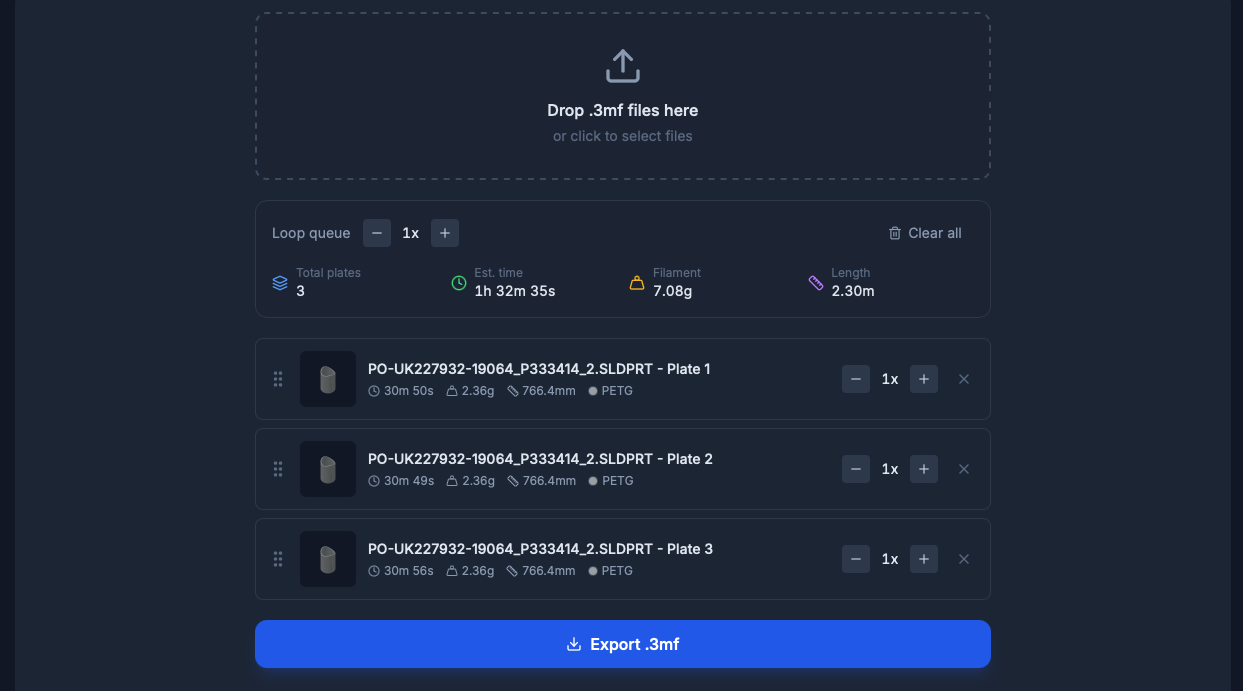
Drag one or more .3mf files onto the drop zone, or click to open a file picker. You can upload files from completely different projects in one go. PlateSwap extracts every plate from every file and adds them all to the queue. One file with three plates, another file with two plates, a third with one. All six plates end up in the queue together.
3. Reorder the Queue
Once your plates are loaded, each one appears as a card showing the plate thumbnail (pulled from the .3mf file), the estimated print time, filament weight, and length. Drag the grip handle on the left of any card to reorder them. The sequence you set here is the sequence the printer will follow.
4. Set Repeat Counts
Each plate has its own repeat counter. Hit + a few times and that plate will appear multiple times back-to-back in the exported gcode. Need to print 6 copies of the base and 3 copies of the lid? Set the base to 6x and the lid to 3x, DONE.
5. Loop the Whole Queue
The loop control repeats the entire sequence, including all the individual repeat counts. Set loop to 3 and the printer will run through your whole plate queue three complete times before stopping. This is useful for production runs where you want to cycle through a set of parts repeatedly.
The stats bar keeps a running total across everything: total plate count, estimated print time, combined filament weight, and filament length. It accounts for repeat counts and loops, so the numbers you see are what the actual print job will consume.
6. Export and Print
Click Export .3mf and you get a single combined file ready to open in Bambu Studio or send directly to your printer. The filename includes the plate count and loop count so it's easy to identify (e.g. plateswap_4plates_3x.gcode.3mf).
Why We Made It Free
Like our Build Plate Optimiser, this started as an internal tool. We needed it, we built it, and it worked well enough that it seemed worth sharing. The kind of repetitive print management it replaces, manually supervising plate changes, queuing jobs by hand. It doesn't add value to anyone. It just kills time.
If PlateSwap saves a few hours of babysitting for other people running Bambu Lab printers, that's a net win for the community. And if you ever need parts manufactured FDM, SLA, SLS, or CNC machining we're right here.
Who Is This For?
- Print farm operators - running Bambu Lab printers who want overnight unattended batch runs across different models
- Small businesses - using 3D printing in-house who need to chain jobs without manual intervention between plates
- Makers and hobbyists - printing multiple copies of different parts who want to set it up once and walk away
- Anyone - tired of manually sending jobs one by one when their printer could be handling them in sequence
Try It Now
PlateSwap is live on our tools page right now. Grab a few sliced .3mf files, upload them, and see how quickly you can build a combined print queue.
Got feedback or a feature you'd like to see? We're always iterating — reach out at ben@bfgarage.co.uk.